
Watermarks
BabelBird watermarks add confidentiality notices and traceable identifiers to file viewing and sharing. The updated interface adds graphic (vector) watermarks alongside account, text and image watermarks, and offers All pages, extending display beyond file previews.
Configuration
- Open Enterprise Console > Watermark Settings and enable watermarks.
- Select Preview only or All pages as the display scope.
- Choose the type and configure its text, account identifier, image or graphic code.
- Adjust the supported color, opacity, size and density controls while checking the preview.
- Save and verify application pages, previews and sharing access with representative accounts. Controls may vary by deployment version.
Display Scope
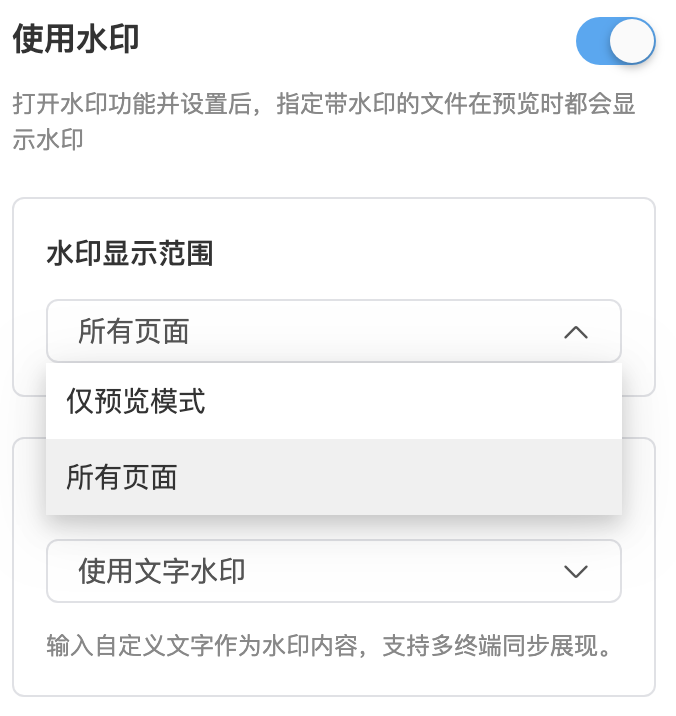
| Scope | Meaning | Use |
|---|---|---|
| Preview only | Show watermarks when files are opened in the previewer | Document, image and drawing previews |
| All pages | Show watermarks throughout the drive application, not just preview pages | Consistent notices and identifiers on business screens |
All pages means application pages, not every page of a PDF. It does not automatically embed watermarks in downloaded originals. Older options controlling which files or external shares receive marks are separate from this display scope.
Watermark Types
| Type | Content | Typical use |
|---|---|---|
| Registered account | Account-related identifiers; confirm the displayed identity for anonymous sharing in the actual configuration | Tracing identified access |
| Text | Administrator-defined company name or confidentiality notice | Consistent warnings |
| Image | Uploaded logo or another image | Brand and copyright marks |
| Graphic (vector) | Graphic patterns carrying a hexadecimal feature code | Screenshot marking and assisted investigation |
Some private deployments support combinations. A true watermark describes a mark retained in output content, rather than a separate content type alongside text, image and vector marks.
Graphic (Vector) Watermarks

Vector watermarks turn a feature code into repeated graphic units, using point patterns for hexadecimal characters, alignment markers and a reference table to assist reading. Administrators can tune the style, opacity, size and density to balance legibility and identifier retention.
The optional AI-removal protection declaration is a visible notice, not a guarantee that AI-based watermark removal will fail.
Assisted Screenshot Tracing
- Preserve an unmodified copy of the screenshot.
- Import it through the tracing/reveal entry and adjust the enhancement controls.
- Read the code with the reference table and cross-check connected code records and access logs.
- Treat matches as investigative leads requiring authorized human review, not definitive attribution.
Limitations: readability depends on resolution, compression, cropping, photography, obstruction and processing. Before using traceability, confirm that codes are mapped to actual access records and that a retention policy is in place. A decoded identifier without a corresponding record cannot establish who accessed the content. Automatic decoding depends on the deployed capabilities; automatic identification of a person and resistance to every removal method are not guaranteed.
Preview and Output Watermarks
| Mode | Where the mark appears | Outside the application |
|---|---|---|
| Interface or preview watermark | Application or preview surface | Screenshots may retain it; original downloads do not automatically acquire it |
| True watermark or watermarked output | Content generated through supported rendering or export | The generated file can retain it |
| Watermarked PDF download | A separately generated PDF copy, subject to permission | The PDF retains its mark; downloading the original is a different operation |
For external distribution, combine preview access, restrictions on original downloads, watermarked PDF output and expiration. Format and watermark support depend on deployed modules. An interface vector watermark does not imply vector watermark output for every format.
Security Recommendations
- Use subtle text or account marks for routine internal documents.
- Select All pages for sensitive interfaces and test lists, details and previews.
- Retain code associations and test realistic screenshots, compression and photographs.
- Combine marks with identity verification, link passwords, expiration, permissions and logs.
- Watermarks do not prevent every screenshot, photograph or copy and do not replace access controls, encryption, audit or backups.